
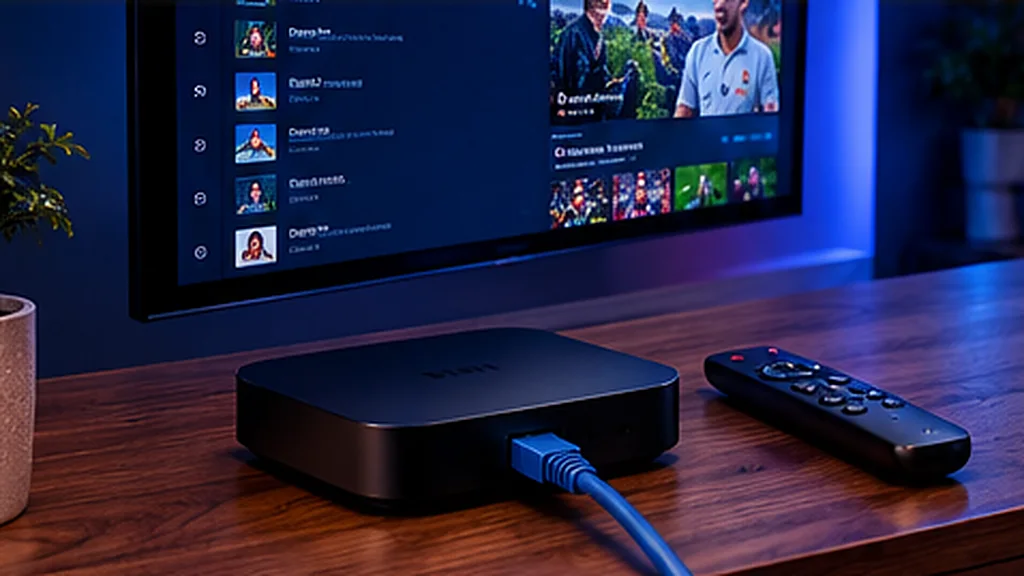
MAG boxes from Infomir are dedicated IPTV set-top boxes. They’re simple, reliable and feel like a traditional TV box – you just use the remote, flick through the guide and watch. Instead of logging in with a username and password, a MAG box connects to a portal that’s linked to the box’s MAC address.
Which MAG Boxes Are Supported?
Popular models such as the MAG 322, MAG 324, MAG 424 and MAG 524 all work in the same way. Older models like the MAG 254 and 256 also work, though the menus look slightly different.
Step 1: Find Your MAC Address
Turn the box over – the MAC address is printed on the sticker underneath. It always starts with 00:1A:79. You can also find it on screen under Settings → Device info (or System info).
Send the full MAC address to us on WhatsApp or by email. We link your subscription or free trial to it and send you your portal URL.
Step 2: Open the Portal Settings
- Switch on the box and wait for the main menu.
- Go to Settings (the cog icon), then System settings.
- Select Servers → Portals.
Step 3: Enter the Portal URL
- In Portal 1 name, type something you’ll recognise, such as UK Pro TV.
- In Portal 1 URL, type the portal address from your welcome message exactly – including http:// and any slash at the end.
- Press OK or Save.
Step 4: Restart the Box
Go back to the settings menu and choose Restart portal – or switch the box off at the plug for ten seconds. When it starts up, it connects to the portal and loads your channels, TV guide and on-demand library.
Try UK Pro TV free for 48 hours
32,000+ live channels and 200,000+ films and series on your own devices. No card, no contract, no auto-renewal.
Getting the Best From a MAG Box
- Use the Ethernet port. MAG boxes are designed to be wired, and it gives the steadiest picture.
- Set the time zone to London under Settings → System settings → Time so the TV guide lines up.
- Pick the right video output (1080p or 4K on the 424/524) under Settings → Video.
- Update the firmware under Settings → Software update for better stability.
Common MAG Errors and What They Mean
“Your STB is blocked” or “Contact your provider”
The MAC address hasn’t been linked yet, or there’s a typo in the one you sent us. Double-check the sticker and message us.
“Loading portal…” never finishes
Check the portal URL character by character – a missing slash or a typo is the usual cause. Then check your internet connection.
Channels load but the guide is empty
Set the correct time zone and restart the portal. The EPG can take a few minutes to fill in after a first start.
Prefer Another Device?
If you don’t have a MAG box, a Firestick or Android TV box is a great alternative. Try everything first with a free 48-hour trial, or message us on WhatsApp or by email and we’ll help you choose.
Leave a Reply