Free 48-hour trial – no card needed · Plans from £3.29 a month · 7-day money-back guarantee · Start free

Category: IPTV Guides

  • MAG Box IPTV Setup UK: Portal Guide for 2026

    MAG Box IPTV Setup UK: Portal Guide for 2026

    MAG boxes from Infomir are dedicated IPTV set-top boxes. They’re simple, reliable and feel like a traditional TV box – you just use the remote, flick through the guide and watch. Instead of logging in with a username and password, a MAG box connects to a portal that’s linked to the box’s MAC address.

    Which MAG Boxes Are Supported?

    Popular models such as the MAG 322, MAG 324, MAG 424 and MAG 524 all work in the same way. Older models like the MAG 254 and 256 also work, though the menus look slightly different.

    Step 1: Find Your MAC Address

    Turn the box over – the MAC address is printed on the sticker underneath. It always starts with 00:1A:79. You can also find it on screen under Settings → Device info (or System info).

    Send the full MAC address to us on WhatsApp or by email. We link your subscription or free trial to it and send you your portal URL.

    Step 2: Open the Portal Settings

    1. Switch on the box and wait for the main menu.
    2. Go to Settings (the cog icon), then System settings.
    3. Select Servers → Portals.

    Step 3: Enter the Portal URL

    1. In Portal 1 name, type something you’ll recognise, such as UK Pro TV.
    2. In Portal 1 URL, type the portal address from your welcome message exactly – including http:// and any slash at the end.
    3. Press OK or Save.

    Step 4: Restart the Box

    Go back to the settings menu and choose Restart portal – or switch the box off at the plug for ten seconds. When it starts up, it connects to the portal and loads your channels, TV guide and on-demand library.

    Try UK Pro TV free for 48 hours

    32,000+ live channels and 200,000+ films and series on your own devices. No card, no contract, no auto-renewal.

    Getting the Best From a MAG Box

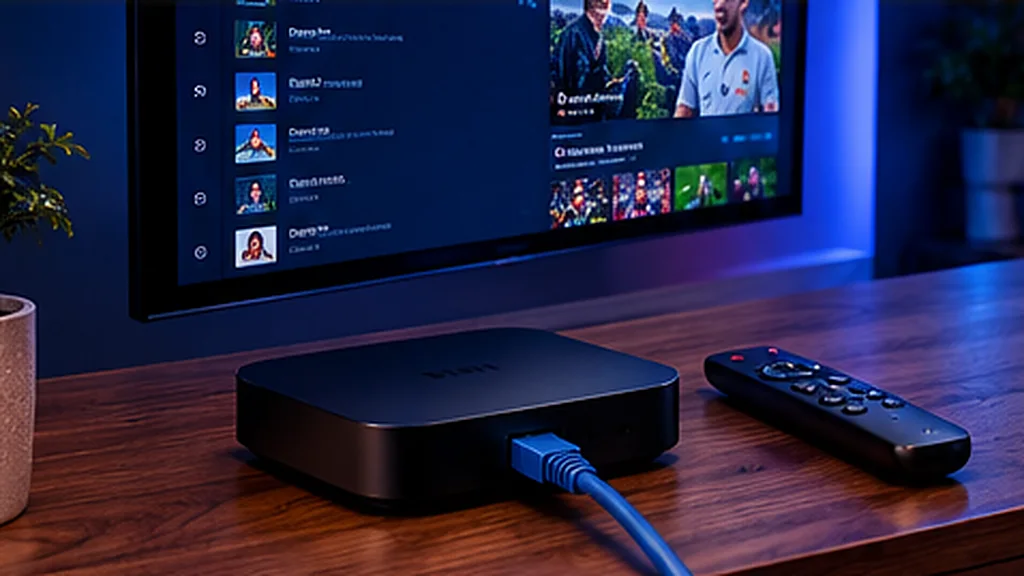
    • Use the Ethernet port. MAG boxes are designed to be wired, and it gives the steadiest picture.
    • Set the time zone to London under Settings → System settings → Time so the TV guide lines up.
    • Pick the right video output (1080p or 4K on the 424/524) under Settings → Video.
    • Update the firmware under Settings → Software update for better stability.

    Common MAG Errors and What They Mean

    “Your STB is blocked” or “Contact your provider”

    The MAC address hasn’t been linked yet, or there’s a typo in the one you sent us. Double-check the sticker and message us.

    “Loading portal…” never finishes

    Check the portal URL character by character – a missing slash or a typo is the usual cause. Then check your internet connection.

    Channels load but the guide is empty

    Set the correct time zone and restart the portal. The EPG can take a few minutes to fill in after a first start.

    Prefer Another Device?

    If you don’t have a MAG box, a Firestick or Android TV box is a great alternative. Try everything first with a free 48-hour trial, or message us on WhatsApp or by email and we’ll help you choose.
  • Watch UK IPTV on Windows PC & Mac: 2026 Guide

    Watch UK IPTV on Windows PC & Mac: 2026 Guide

    A laptop or desktop is a handy way to watch IPTV – the match on a second monitor while you work, a film in the spare room or the whole line-up on a TV via HDMI. Here’s how to watch UK Pro TV on Windows and macOS.

    Option 1: A Dedicated IPTV Player (Recommended)

    A dedicated player gives you the full experience: channel categories, a TV guide, favourites and the on-demand library.

    On Windows

    1. Download the Windows IPTV player we recommend (some are available in the Microsoft Store).
    2. Install and open it.
    3. Choose Xtream Codes and enter your username, password and server URL – or paste your M3U link.
    4. Save and wait for your channels and EPG to load.

    On Mac

    1. Download the macOS IPTV player we recommend, or a Mac-compatible player from the Mac App Store.
    2. If macOS warns that the app is from an unidentified developer, right-click the app in Applications and choose Open.
    3. Add your login or playlist and save.

    Option 2: VLC Media Player

    VLC is free, works on both Windows and Mac and can play an M3U playlist directly – handy if you just want to watch quickly.

    1. Install VLC from the official VideoLAN website.
    2. Open VLC and choose Media → Open Network Stream (Windows) or File → Open Network (Mac).
    3. Paste your M3U link and press Play.
    4. Open the playlist view (Ctrl + L or Cmd + L) to browse channels.

    VLC doesn’t show a proper TV guide, so a dedicated player is better for everyday viewing.

    Try UK Pro TV free for 48 hours

    32,000+ live channels and 200,000+ films and series on your own devices. No card, no contract, no auto-renewal.

    Watching on Your TV From a Laptop

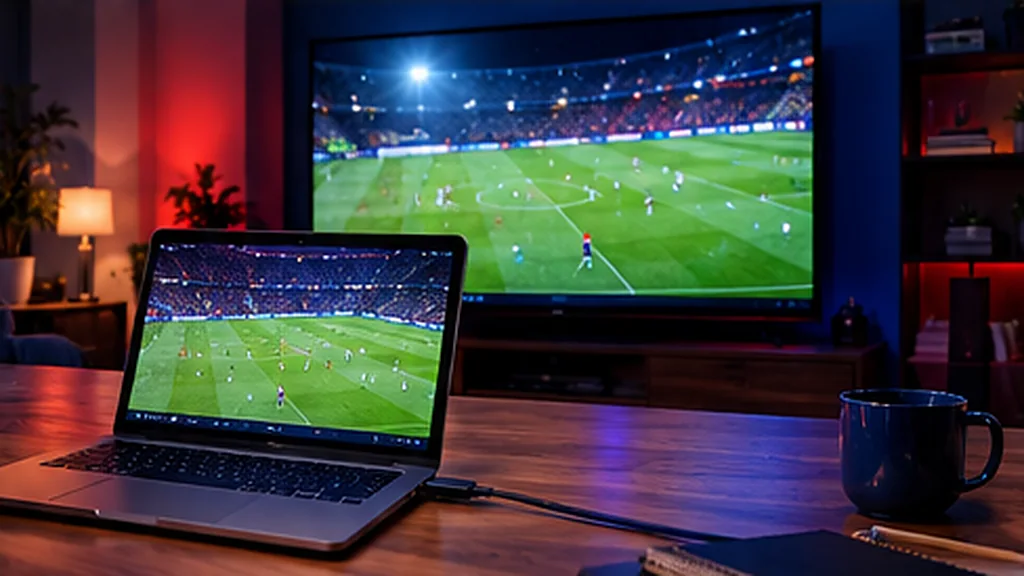
    • HDMI cable: plug the laptop into the TV and set the TV to that HDMI input. On Windows press Win + P and choose Duplicate or Second screen only; on a Mac, open System Settings → Displays.
    • Wireless: Windows supports Miracast (Win + K) on many TVs, and Macs can AirPlay to Apple TV or AirPlay-compatible Smart TVs.

    Tips for Smooth Playback

    • Plug the computer into the router with an Ethernet cable if you can.
    • Close heavy apps and browser tabs while streaming.
    • Keep your graphics drivers (Windows) or macOS up to date.
    • If a channel stutters, switch the player’s decoder between hardware and software.

    Troubleshooting

    Windows Defender or my antivirus blocks the player

    Only download players from their official site or the Microsoft Store. If your antivirus quarantines a trusted player, add it as an exception.

    VLC says “Your input can’t be opened”

    Check the full M3U link has been pasted, including http:// and the port number, with no spaces at the end.

    The picture is smooth but the sound is out of sync

    Most players let you adjust the audio delay in settings. In VLC, press J or K to nudge it.

    Try It on Your Computer

    Start a free 48-hour trial and test UK Pro TV on your laptop – no card needed. For your living-room TV, see our Firestick guide or the full setup guide.

  • Android TV & Android Box IPTV Setup: UK Guide 2026

    Android TV & Android Box IPTV Setup: UK Guide 2026

    Android TV is one of the best platforms for IPTV. Whether you have a TV with Google TV built in (many Sony, TCL and Hisense models), an Nvidia Shield, a Chromecast with Google TV or a budget Android box, you get access to the widest choice of IPTV players – and setup takes just a few minutes.

    Android TV, Google TV or Android Box – What’s the Difference?

    • Android TV / Google TV is Google’s official TV software, with the Google Play Store built in.
    • Android boxes are small media players that run Android. Some have the full Play Store; others run phone-style Android with a different store.

    The setup is almost identical on all of them.

    Step 1: Install an IPTV Player From Google Play

    1. On the home screen, open the Google Play Store (or search with the microphone button).
    2. Search for the IPTV player we recommended.
    3. Select Install and wait for it to finish.

    Popular choices include TiviMate, IPTV Smarters Pro and XCIPTV. TiviMate in particular gives Android TV a polished, Sky-style TV guide.

    Step 2: Can’t Find the App? Sideload It

    If your box doesn’t have the app in its store, install Downloader from the Play Store, then allow it to install apps: Settings → Apps → Security & restrictions → Unknown sources (or Settings → Device Preferences → Security). Open Downloader, enter the link from your welcome message and install the player.

    Step 3: Log In

    Open the player and choose:

    • Xtream Codes – username, password and server URL, or
    • M3U playlist – paste your playlist link.

    Save, then wait while your channels, EPG and on-demand library load. TiviMate may ask you to choose which channel groups to show – pick the ones you want and hide the rest for a tidier guide.

    Try UK Pro TV free for 48 hours

    32,000+ live channels and 200,000+ films and series on your own devices. No card, no contract, no auto-renewal.

    Performance Tips for Android TV

    • Use Ethernet if your TV or box has a port – it’s the single biggest upgrade for live sport.
    • Choose the right player engine. In most players’ settings you can switch between hardware and software decoding; try the other option if a channel stutters.
    • Clear cache regularly: Settings → Apps → your player → Storage → Clear cache.
    • Turn off auto-updates for heavy apps you don’t use, so they don’t slow the box down.
    • Restart the box once a week – cheaper boxes benefit most.

    Getting a Proper TV Guide

    The EPG usually loads automatically with Xtream Codes. If it’s missing, open the player’s settings, find EPG or TV guide and select Update. Make sure the time zone is set to London (GMT/BST) so programmes line up correctly.

    Common Android Problems and Fixes

    The app crashes on launch

    Clear the app’s storage (not just cache), reopen it and log in again. Make sure your box has at least 1 GB of free storage.

    Video plays but there’s no sound

    Switch the audio output in the player settings (for example from passthrough to PCM), especially if you use a soundbar.

    Buffering at peak times

    Move to 5 GHz Wi-Fi or Ethernet, and see our 12 IPTV buffering fixes.

    Ready When You Are

    Test everything with a free 48-hour UK Pro TV trial – no card required. Using an Android phone or tablet too? The same app and login work there, and our setup guide covers every other device.

  • How to Watch UK IPTV on iPhone & iPad (2026)

    How to Watch UK IPTV on iPhone & iPad (2026)

    Your iPhone or iPad makes a brilliant second screen – the match in the kitchen, the kids’ channels in the back of the car, or the latest box set in bed. With an IPTV player from the App Store you can watch your whole UK Pro TV line-up on iOS and iPadOS in a few minutes.

    What You Need

    • An iPhone or iPad on a recent version of iOS or iPadOS
    • Wi-Fi or 4G/5G – roughly 10–15 Mbps for HD
    • Your IPTV login: username, password and server URL, or an M3U link
    • A free IPTV player app from the App Store (we’ll recommend one)

    Step 1: Install an IPTV Player

    Open the App Store, tap the search tab and type the name of the IPTV player we recommended. Tap Get and confirm with Face ID, Touch ID or your password. Popular iOS players support both Xtream Codes and M3U playlists.

    Step 2: Add Your Login

    1. Open the app and tap Add playlist, Add user or the + button.
    2. Choose Xtream Codes and enter your username, password and server URL exactly as sent – or choose M3U and paste your playlist link.
    3. Give the profile a name (for example “UK Pro TV”) and tap Save.
    4. Wait a few seconds while live TV, films and series load.

    Step 3: Start Watching

    Browse by category, open the TV guide to see what’s on now and next, or search the on-demand library. Rotate your phone for full-screen viewing.

    Try UK Pro TV free for 48 hours

    32,000+ live channels and 200,000+ films and series on your own devices. No card, no contract, no auto-renewal.

    Watch on the Big Screen With AirPlay

    If you have an Apple TV or an AirPlay-compatible Smart TV, open Control Centre, tap Screen Mirroring and choose your TV – or use the AirPlay button inside the player if it has one. For the best quality on the living-room TV, though, a dedicated app on a Firestick or Smart TV is smoother than mirroring.

    Picture-in-Picture

    Many iOS players support picture-in-picture, so you can keep the match playing in a corner while you reply to messages. Start a stream, then swipe up to go home – the video shrinks into a floating window.

    Saving Mobile Data

    Streaming uses a lot of data – an hour of HD can use well over 1 GB. To stay within your allowance:

    • Choose an SD or HD stream rather than 4K when you’re on 4G or 5G.
    • Turn on the player’s data-saver or lower-quality option if it has one.
    • Stick to Wi-Fi for long films and box sets.

    Troubleshooting on iPhone and iPad

    The app says my login is wrong

    Details are case-sensitive. Copy and paste them from your welcome message to avoid typos, and check the server URL includes the port number.

    Channels load slowly on Wi-Fi

    Move closer to the router or switch to the 5 GHz network. Our buffering guide has more fixes.

    No sound on some channels

    Open the player’s settings and try a different audio track or switch the video player engine – most iOS players offer two.

    Take British TV Wherever You Go

    Start a free 48-hour trial and test UK Pro TV on your iPhone or iPad today – no card needed. Got other devices at home? Our setup guide covers them all.

  • How to Set Up IPTV on a Firestick in the UK (2026 Guide)

    How to Set Up IPTV on a Firestick in the UK (2026 Guide)

    The Amazon Fire TV Stick is the most popular way to watch IPTV in the UK – it’s cheap, it plugs straight into your TV’s HDMI port and it runs every major IPTV player smoothly. This guide shows you exactly how to set up IPTV on a Firestick, step by step. It takes around ten minutes and you don’t need any technical knowledge.

    What You Need Before You Start

    • An Amazon Fire TV Stick, Fire TV Stick 4K or Fire TV Cube, connected to your TV and the internet
    • Broadband of roughly 10–15 Mbps for HD or 25 Mbps+ for 4K
    • Your IPTV login details – username, password and server URL, or a playlist link
    • About ten minutes

    No subscription yet? You can try UK Pro TV free for 48 hours and follow this guide with your trial login.

    Step 1: Update Your Firestick

    An up-to-date Firestick runs apps faster and more reliably. Go to Settings → My Fire TV → About and select Check for Updates. Install anything available and let the stick restart.

    Step 2: Look for Your IPTV App in the Amazon Appstore

    From the home screen, go to Find → Search and type the name of the IPTV player we recommended. If it appears, select Get or Download and skip straight to Step 6. If it isn’t available in the UK Appstore, carry on with Steps 3 to 5.

    Step 3: Turn On Developer Options

    On newer Firesticks the Developer Options menu is hidden. To reveal it:

    1. Go to Settings → My Fire TV → About.
    2. Highlight your device name (for example “Fire TV Stick 4K”) and press the select button seven times.
    3. A message confirms you’re now a developer. Press back – Developer Options now appears under My Fire TV.

    Step 4: Install the Downloader App

    Search for Downloader in the Appstore and install it. It’s a free, widely used app that lets you install apps from a web address.

    Step 5: Allow Downloader to Install Apps

    Go to Settings → My Fire TV → Developer Options → Install unknown apps and switch Downloader to ON. (On some older models this setting is called Apps from Unknown Sources.)

    Step 6: Install Your IPTV Player

    Open Downloader, type the link or code from your welcome message into the box and select Go. When the download finishes, choose Install, then Done. You can delete the installation file afterwards to free up space.

    Step 7: Log In

    Open your IPTV app. Most apps give you two options:

    • Xtream Codes API – enter your username, password and server URL exactly as we sent them.
    • M3U playlist – paste the full playlist link.

    Give your profile a name, save it and wait for the channels, TV guide and on-demand library to load. The first load can take a minute.

    Step 8: Make It Easy to Find

    Hold the Home button, choose Apps, highlight your IPTV app, press the menu button (three lines) and select Move to front. It now sits on your home screen.

    Try UK Pro TV free for 48 hours

    32,000+ live channels and 200,000+ films and series on your own devices. No card, no contract, no auto-renewal.

    Firestick IPTV Tips for a Smoother Picture

    • Use 5 GHz Wi-Fi or an Ethernet adapter – the Firestick’s Wi-Fi is the most common cause of buffering.
    • Clear the app cache every few weeks: Settings → Applications → Manage Installed Applications → your app → Clear cache.
    • Restart the Firestick now and then: Settings → My Fire TV → Restart.
    • Power it from the plug, not the TV’s USB port – underpowered sticks stutter.
    • Close unused apps to free up memory on older models.

    Common Firestick Problems and Fixes

    The app won’t install

    Check that Install unknown apps is switched on for Downloader and that you typed the link exactly. If storage is full, uninstall apps you don’t use.

    “Invalid login” or no channels

    Usernames and passwords are case-sensitive. Re-enter them carefully, check the server URL includes http:// and the port number, then try again.

    Channels buffer or freeze

    Move the router closer, switch to 5 GHz Wi-Fi or use Ethernet. Our 12 fixes for IPTV buffering cover everything else.

    Need a Hand?

    Message our support team on WhatsApp or by email with your Firestick model and what you can see on screen – we’ll walk you through it. For other devices, see our full IPTV setup guide.

  • IPTV on Samsung & LG Smart TVs: UK Setup Guide 2026

    IPTV on Samsung & LG Smart TVs: UK Setup Guide 2026

    If you’ve got a Samsung or LG Smart TV, you may not need a Firestick or a set-top box at all. Both brands let you install an IPTV player straight onto the TV, so you can watch live UK channels and on-demand box sets with just the TV remote. Here’s how to set it up.

    Which Smart TVs Work With IPTV?

    • Samsung Smart TVs running Tizen (most models from 2017 onwards)
    • LG Smart TVs running webOS (most models from 2016 onwards)

    Older or budget models may have a limited app store. If yours doesn’t offer a suitable player, a Firestick or an Android TV box is a cheap and reliable alternative.

    How Smart TV IPTV Apps Work

    Samsung and LG don’t let you install apps from outside their own stores, so you use a player that’s available in the Samsung Apps store or the LG Content Store. Many of these players work slightly differently from phone apps:

    • The app shows a MAC address or device key on screen.
    • Your playlist is linked to that device – either you enter your login in the app, or we add it for you.
    • Some Smart TV players charge a small one-off activation fee to the app developer after a free trial period. This is separate from your IPTV subscription.

    We’ll tell you which player suits your TV model when we send your login details.

    Setting Up IPTV on a Samsung Smart TV

    1. Press the Home button and open Apps.
    2. Select the search icon and type the name of the recommended IPTV player.
    3. Choose the app and select Install, then Open.
    4. Note the MAC address / device key shown on screen. Send it to us on WhatsApp if your welcome message asks for it.
    5. Enter your login details in the app, or wait for us to confirm your playlist has been added.
    6. Restart the app – your channels and TV guide will load.

    Setting Up IPTV on an LG Smart TV

    1. Press the Home button and open the LG Content Store (sometimes just called Apps).
    2. Search for the recommended IPTV player and select Install.
    3. Launch the app and note the MAC address or device key.
    4. Add your login details, or send us the device key so we can link your playlist.
    5. Close and reopen the app to load your channels.

    Try UK Pro TV free for 48 hours

    32,000+ live channels and 200,000+ films and series on your own devices. No card, no contract, no auto-renewal.

    Getting the Best Picture on a Smart TV

    • Use a wired connection. Most Smart TVs have an Ethernet port – a cable gives the steadiest stream.
    • Check the Wi-Fi band. If you can’t use a cable, connect to your router’s 5 GHz network.
    • Turn off motion smoothing (Auto Motion Plus on Samsung, TruMotion on LG) if live sport looks “soapy” or stutters.
    • Keep the TV updated. Go to Settings → Support → Software Update (Samsung) or Settings → General → About this TV (LG).

    Fixing Common Smart TV Problems

    The app isn’t in my TV’s store

    App availability varies by model and region. Try another recommended player, or use a Firestick plugged into the TV.

    The app says “playlist not found”

    Check the MAC address you sent us is correct – a single wrong character stops it working. Restart the app after we confirm the playlist is added.

    The picture keeps freezing

    Smart TV Wi-Fi chips are often weaker than a Firestick’s. Try a cable, move the router closer or read our buffering fixes.

    Try It on Your TV First

    The easiest way to check how UK Pro TV runs on your Samsung or LG is a free 48-hour trial – no card needed. Stuck at any point? Message us and we’ll set it up with you. You’ll find guides for every other device in our setup guide.

  • IPTV Buffering in the UK? 12 Fixes That Actually Work (2026)

    IPTV Buffering in the UK? 12 Fixes That Actually Work (2026)

    There’s nothing worse than the picture freezing just as the ball hits the net. The good news: most IPTV buffering is caused by something in your own home – usually Wi-Fi – and it can be fixed in minutes. Work through these twelve fixes in order and you’ll solve the vast majority of problems.

    First, Find the Cause

    Ask yourself three quick questions:

    • Is it every channel, or just one? If it’s one channel, that stream may be busy – try another and let us know.
    • Is it every device? If your phone plays fine but the TV buffers, the problem is the TV’s connection or the device itself.
    • Is it only at certain times? Buffering only on busy evenings usually points to a congested home network or broadband line.

    The 12 Fixes

    1. Restart everything

    Switch off the router, the TV and the streaming device for 30 seconds, then turn the router back on first. It clears memory and refreshes your connection.

    2. Use an Ethernet cable

    A wired connection is the single most effective fix. Most Smart TVs, Android boxes and MAG boxes have an Ethernet port, and you can buy a cheap Ethernet adapter for a Firestick.

    3. Switch to 5 GHz Wi-Fi

    If a cable isn’t practical, connect to your router’s 5 GHz network. It’s faster and less crowded than 2.4 GHz, though its range is shorter.

    4. Move the router (or the device)

    Thick walls, mirrors, fish tanks and even microwaves weaken Wi-Fi. Keep the router high, central and out of cupboards.

    5. Add a mesh system or powerline adapters

    In bigger British homes – especially older houses with solid walls – a mesh Wi-Fi system or a pair of powerline adapters can bring a strong connection to the TV room.

    6. Test your speed at the TV

    Run a speed test on the device itself, not next to the router. As a guide, you want 10–15 Mbps for HD and 25 Mbps+ for 4K. Our broadband speed guide explains how much you really need.

    7. Pause other heavy downloads

    Game updates, cloud backups and other people streaming 4K all compete for bandwidth. Schedule big downloads overnight.

    8. Clear the app cache

    On Firestick and Android: Settings → Applications → your IPTV app → Clear cache. Do this every few weeks.

    9. Change the player settings

    Most IPTV apps let you choose a different video player or decoder (hardware vs software) and increase the buffer size. Try each option – the right one depends on your device.

    10. Pick a lower quality stream

    If your connection is borderline, an HD version of a channel will play more smoothly than 4K.

    11. Update your device and app

    Updates often fix playback bugs. Keep both your IPTV player and your TV or stick’s software up to date.

    12. Upgrade an old device

    First-generation Firesticks and cheap Android boxes can struggle with modern apps. A newer Fire TV Stick 4K or a good Android TV device makes a big difference.

    Try UK Pro TV free for 48 hours

    32,000+ live channels and 200,000+ films and series on your own devices. No card, no contract, no auto-renewal.

    Still Buffering?

    Message our support team with your device, your app and a quick speed-test screenshot from the TV, and we’ll help you track it down. Our servers run at 99.9% uptime, so if there’s ever a problem on our side we’ll tell you straight away.

    Setting up a new device? Follow our IPTV setup guide, or test your home network first with a free 48-hour trial.

  • What Broadband Speed Do You Need for IPTV in the UK?

    What Broadband Speed Do You Need for IPTV in the UK?

    One of the first questions people ask before trying IPTV is: “Is my broadband fast enough?” For most British homes the answer is yes – but it’s worth checking, especially if you want 4K or several screens at once.

    How Much Speed Does IPTV Need?

    These figures are a practical guide per screen that’s streaming at the same time:

    Picture qualityRecommended speed
    SD (standard definition)5 Mbps
    HD / Full HD10–15 Mbps
    4K Ultra HD25 Mbps or more

    Stability matters as much as raw speed. A steady 30 Mbps connection usually beats an “up to 100 Mbps” line that drops in and out.

    Watching on More Than One Screen

    Add up what everyone in the house is doing at the same time. For example:

    • One 4K match on the TV (25 Mbps) plus
    • One HD film on a tablet (10–15 Mbps) plus
    • Video calls and phones in the background (5–10 Mbps)

    That’s roughly 40–50 Mbps at peak. Most UK fibre packages cover this, but basic ADSL lines may struggle.

    How to Test Your Speed Properly

    1. Run the test on the device you watch on, or at least in the same room – not right next to the router.
    2. Test at the time you usually watch, such as Saturday afternoon or a weekday evening.
    3. Run it two or three times and look at the lowest result, not the best.
    4. Check the ping and jitter too – low, steady numbers mean a stable stream.

    On a Firestick, you can install a speed test app from the Appstore; on a Smart TV, use the network test in the settings menu.

    Try UK Pro TV free for 48 hours

    32,000+ live channels and 200,000+ films and series on your own devices. No card, no contract, no auto-renewal.

    My Speed Looks Fine – So Why Does It Buffer?

    Often it’s the Wi-Fi between the router and the TV, not the broadband line itself. Try an Ethernet cable or the 5 GHz network, and work through our 12 fixes for IPTV buffering.

    How to Improve a Slow Connection

    • Go wired to the TV or streaming box wherever possible.
    • Reposition the router – high up, central and away from thick walls.
    • Use mesh Wi-Fi or powerline adapters in larger or older homes.
    • Check your package – if you’re on old copper ADSL, fibre (FTTC or full-fibre FTTP) is widely available across the UK and often costs little more.
    • Reboot the router regularly and ask your provider to check the line if speeds suddenly drop.

    Not Sure? Test It for Free

    The simplest way to know is to try. A free 48-hour UK Pro TV trial lets you test HD and 4K channels on your own broadband – no card needed. Learn more about choosing a service in our British IPTV buyer’s guide.

  • IPTV vs Sky, Virgin Media & Freeview: Which Is Best for UK Homes in 2026?

    IPTV vs Sky, Virgin Media & Freeview: Which Is Best for UK Homes in 2026?

    British households have never had more ways to watch TV. You can stick with an aerial and Freeview, sign up to satellite or cable, or stream everything over broadband with IPTV. Each has its place – here’s a fair, side-by-side look at how they compare in 2026.

    The Four Main Options

    • Freeview / Freesat – free-to-air channels through an aerial or dish. No monthly fee, but a limited channel list.
    • Satellite pay TV – a dish, a set-top box and a monthly contract with bundles for sport and films.
    • Cable pay TV – delivered through a cable network, usually bundled with broadband and phone.
    • IPTV – live channels and on-demand content streamed over your existing broadband to an app.

    Side-by-Side Comparison

    Monthly costFree (TV Licence needed)Often £30–£100+ with sport & filmsFrom £3.29 a month
    ContractNoneUsually 18–24 monthsNone – 3 to 24 months, paid up front
    InstallationAerialEngineer visit, dish or cableNone – just an app
    Channels70+ free-to-air channelsHundreds, depending on bundle32,000+ live channels
    On demandCatch-up appsIncluded in some bundles200,000+ films & series
    DevicesTV onlyMain box, plus app on some devicesTV, Firestick, phones, tablets, computers

    Where Satellite and Cable Still Win

    Traditional pay TV is a mature, polished product. You get a dedicated box with recording, a single bill and an engineer to fix problems. If you don’t have reliable broadband, satellite is still the most dependable way to get a big channel line-up.

    Where Freeview Wins

    If you only watch the main British channels, Freeview costs nothing beyond the TV Licence and works with almost any TV. It’s also the simplest option for a second room or a holiday home.

    Where IPTV Wins

    • Cost: a full IPTV subscription costs a fraction of a premium satellite or cable bundle.
    • Flexibility: no long contract, no mid-contract price rises and no early-exit fees.
    • Every screen: watch on the main TV, in the bedroom or on your phone without extra boxes.
    • No installation: nothing to drill, no dish, no waiting for an engineer.
    • Choice: British channels, sport, films, box sets and international channels together.

    Try UK Pro TV free for 48 hours

    32,000+ live channels and 200,000+ films and series on your own devices. No card, no contract, no auto-renewal.

    What About Picture Quality?

    On a good broadband connection, IPTV looks every bit as sharp as satellite – with Full HD and 4K streams on supported channels. The key is a stable connection: see how much speed you need in our broadband guide.

    Do You Still Need a TV Licence?

    Yes. Whichever option you choose, you need a TV Licence to watch or record live TV on any channel in the UK, or to use BBC iPlayer.

    Which Is Right for You?

    • Light viewer, main channels only? Freeview is hard to beat.
    • Patchy broadband? Satellite is the safer choice.
    • Want lots of channels, sport and films without a long contract? IPTV is the best value.

    The easiest way to decide is to try it in your own home. Start a free 48-hour UK Pro TV trial – no card, no commitment – or compare our plans and prices.

  • IPTV Subscription UK 2026: The British Buyer’s Guide

    IPTV Subscription UK 2026: The British Buyer’s Guide

    More and more British households are swapping the satellite dish and the 18-month contract for an IPTV subscription. Instead of a box under the telly, you stream live channels, films and box sets over the broadband you already pay for – on the TV, stick, phone or laptop you already own.

    This guide explains how IPTV works in the UK, what you need at home, what a fair price looks like and how to choose an IPTV provider you can actually rely on.

    What Is IPTV, in Plain English?

    IPTV stands for Internet Protocol Television. Rather than arriving through an aerial, a dish or a cable, TV channels are delivered as a stream over the internet. You open an IPTV player app, log in, and you get a familiar channel list with a TV guide – plus a library of films and series to watch on demand.

    The technology itself is nothing new or exotic. Many of the biggest British broadcasters already deliver their own channels and catch-up services this way.

    Why British Viewers Are Switching to IPTV

    • No installation. No engineer appointment, no dish on the front of the house, no drilling.
    • No long contract. Pay for 3, 6, 12 or 24 months up front – no mid-contract price rises.
    • Every screen. Watch on Smart TVs, Firesticks, Android boxes, MAG boxes, iPhones, iPads and computers.
    • Huge choice. UK entertainment, live sport, news, kids’ channels and international channels in one place.
    • Better value. A good British IPTV service usually costs a fraction of a traditional pay-TV bundle.

    What You Need at Home

    1. A decent broadband connection

    As a rule of thumb, allow around 10–15 Mbps for HD and 25 Mbps or more for 4K, per screen that’s streaming at the same time. Most UK fibre packages manage this comfortably. Our broadband speed guide explains how to test yours properly.

    2. A compatible device

    Popular choices in the UK are the Amazon Fire TV Stick, Samsung and LG Smart TVs, Android TV and Google TV, Android boxes and MAG boxes. You can also watch on an iPhone, iPad, Android phone or tablet, or a Windows PC or Mac.

    3. An IPTV player app

    Your provider gives you login details – usually a username, password and server URL (Xtream Codes) or an M3U playlist link. You enter them in an IPTV player app such as IPTV Smarters Pro, TiviMate or a similar app. A good provider tells you which app suits your device.

    How to Choose the Best IPTV Provider in the UK

    Not every IPTV service is equal. Before you pay, check these six things:

    1. A free trial. You should be able to test the service on your own broadband and devices first. UK Pro TV offers a free 48-hour trial with no card.
    2. Reliability at peak times. Saturday afternoons and big match nights are the real test. Look for a stated uptime – ours is 99.9%.
    3. A proper TV guide. An EPG (electronic programme guide) makes live TV feel like normal telly.
    4. Clear, fixed pricing. No hidden fees, no auto-renewal surprises.
    5. Real support. Can you message a person on WhatsApp or email and get an answer in minutes?
    6. A fair refund policy. If it won’t work on your device, you should get your money back.

    What Does an IPTV Subscription Cost in the UK?

    Prices vary a lot between providers. At UK Pro TV every plan includes the full service:

    PlanPricePer month
    3 months£29£9.67
    6 months£39£6.50
    12 months£49£4.08
    24 months£79£3.29

    Longer plans work out much cheaper – up to 65% less than buying 3-month plans back to back. See all the details on our pricing page.

    Try UK Pro TV free for 48 hours

    32,000+ live channels and 200,000+ films and series on your own devices. No card, no contract, no auto-renewal.

    How to Get Set Up in Minutes

    1. Claim your free trial or choose a plan on WhatsApp or by email.
    2. Tell us your device – we send your login and the right setup steps.
    3. Install the recommended IPTV app and enter your details.
    4. Wait a few seconds for the channels and TV guide to load, then start watching.

    Our device guides walk you through every step: Firestick, Samsung & LG Smart TV, Android TV, iPhone & iPad, Windows & Mac and MAG box.

    Is IPTV Legal in the UK?

    IPTV as a technology is perfectly legal – it’s simply a way of delivering TV. What matters is that the content is properly licensed. Remember too that in the UK you need a TV Licence to watch or record live TV on any channel, or to use BBC iPlayer, however you receive it.

    The Bottom Line

    A good IPTV subscription gives British viewers more choice, more flexibility and better value than a traditional pay-TV contract. Test before you buy, check the support and the refund policy, and make sure your broadband is up to the job.

    Ready to see the difference? Start your free 48-hour UK Pro TV trial – no card, no contract, no auto-renewal.