
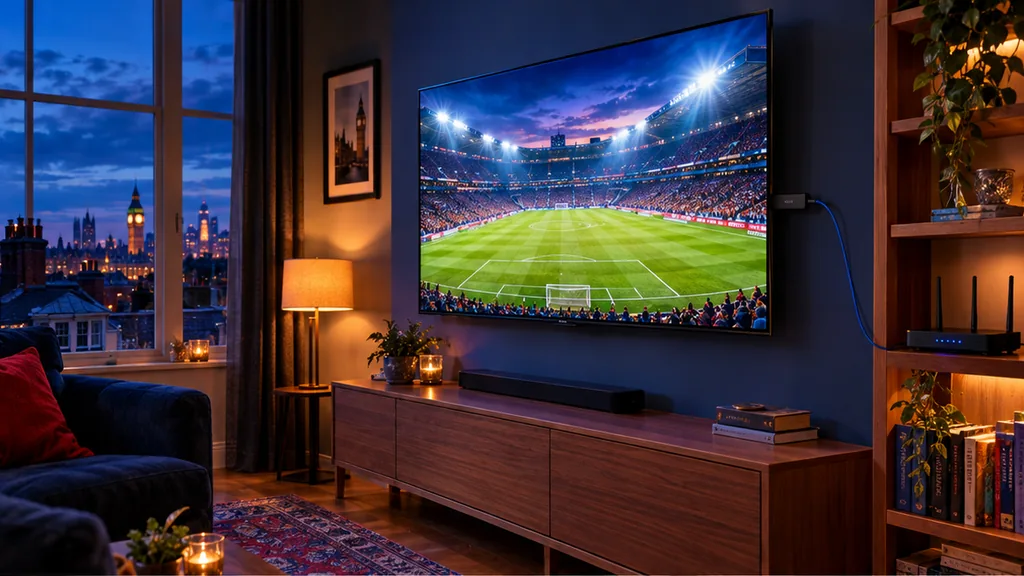
A 4K picture on a big British telly is a treat – the grass on the pitch, the faces in a period drama, the detail in a nature documentary. But 4K IPTV only looks its best when every link in the chain can handle it: the channel, the TV, the streaming device, the broadband and a couple of settings most people never touch.
This guide walks through each one in plain English, so you can get a proper Ultra HD picture at home in the UK.
What Does 4K IPTV Actually Mean?
4K – also called Ultra HD or UHD – is a picture of 3840 × 2160 pixels. That is four times the detail of Full HD (1080p). With IPTV, the 4K picture is streamed to you over your broadband instead of arriving by dish or aerial.
Two things are worth knowing from the start:
- Not every channel is broadcast in 4K. Most live channels are HD or Full HD. 4K is used mainly for selected sport, films and some box sets. Your IPTV app usually shows a “4K” or “UHD” label on those channels.
- A 4K stream needs more bandwidth. It carries much more information than an HD one, so your broadband and Wi-Fi matter more.
What You Need for 4K IPTV
- A 4K TV – ideally with an HDMI port marked HDMI 2.0 (or newer) and HDCP 2.2.
- A 4K streaming device or a 4K Smart TV app – an HD-only stick will never show 4K, however good your TV is.
- Fast, steady broadband – allow 25 Mbps or more for each 4K screen.
- A good connection to the router – an Ethernet cable or strong 5 GHz Wi-Fi.
- The right settings on the TV and the device (see below).
- A 4K source – an IPTV subscription that includes 4K channels and films.
The Best Devices for 4K IPTV
| Device | 4K? | Good to know |
|---|---|---|
| Amazon Firestick 4K / 4K Max | Yes | Easy and popular – plug it straight into the TV’s HDMI port. See our Firestick setup guide. |
| Standard Firestick (HD model) | No | Full HD at best, even on a 4K TV. |
| Android TV and Google TV boxes | Most models | A quality box with a wired Ethernet port gives the steadiest 4K. See our Android TV guide. |
| Samsung and LG 4K Smart TVs | Yes | The built-in IPTV app plays 4K – no extra box needed. See our Smart TV guide. |
| MAG boxes | Newer models | Check that your model lists 4K / UHD support. See our MAG box guide. |
| Phones, tablets and laptops | Varies | The screen is too small to see much difference – Full HD is fine. |
Your choice of player app matters too. Our best IPTV apps for UK viewers compares the most popular ones.
How Much Broadband Speed Does 4K Need?
| Picture quality | Speed per screen |
|---|---|
| SD | 3–5 Mbps |
| HD (720p) | 5–10 Mbps |
| Full HD (1080p) | 10–15 Mbps |
| 4K Ultra HD | 25 Mbps or more |
Remember the figure is per screen. If someone is watching 4K in the lounge while the kids stream in their bedrooms and a laptop is on a video call, add it all up.
Test your speed at the time you actually watch – a Saturday evening is a very different story from a Tuesday morning. Our broadband speed guide explains how to test properly and what to do if your line is slow.
Settings to Check for a Real 4K Picture
On the TV
- Turn on the enhanced HDMI mode for the port your device uses. On Samsung TVs it is usually called *Input Signal Plus*; on LG TVs, *HDMI Ultra HD Deep Colour*. Without it, many TVs limit the port to HD.
- Use the HDMI port that supports 4K. On some TVs only one or two ports do – check the label next to the port.
- Pick a sensible picture mode such as Standard, Movie or Filmmaker. Avoid “Vivid” for long viewing.
On the streaming device
- Set the display resolution to 4K / 2160p (or “Auto”) in the device’s display settings.
- Turn on match frame rate if your device offers it – it makes football and fast motion smoother.
- Make sure HDR is set to adaptive or automatic, so HDR content shows correctly.
In the IPTV app
- Leave the video decoder on hardware where possible – 4K streams are heavy and hardware decoding copes best.
- Choose the 4K version of a channel when there is more than one.
Try UK Pro TV free for 24 hours
32,000+ live channels and 200,000+ films and series on your own devices. No card, no contract, no auto-renewal.
Why Does My 4K Channel Buffer?
If HD channels play perfectly but 4K stutters, the cause is almost always bandwidth or Wi-Fi rather than the service. Try these in order:
- Use a cable. Connect the device to the router with Ethernet, or use a powerline adapter.
- Switch to 5 GHz Wi-Fi and move the router out of the TV cabinet.
- Pause other big downloads – game updates, cloud back-ups and other streams.
- Restart the router and the device to clear any glitches.
- Clear the app cache and install any app updates.
- Try the HD version of the same channel to confirm whether it is a speed issue.
Our full guide to fixing IPTV buffering has more fixes, and if a whole app misbehaves, see IPTV not working: 10 fixes.
Is 4K Worth It?
On a TV of around 50 inches or larger, watched from a normal sofa distance, yes – especially for live sport, nature programmes and new films. On a smaller TV or a phone, Full HD already looks excellent and uses far less data, so do not worry if your setup is HD only.
4K IPTV With UK Pro TV
Every UK Pro TV plan includes the full service – live channels, films and series, with Full HD and 4K streams on supported channels and devices. There is no extra charge for 4K. See our IPTV plans and prices.
The best way to know how 4K looks on your own TV and broadband is to test it. Start a free 24-hour UK Pro TV trial – no card needed – and if you need a hand with the settings, message us on WhatsApp or by email.
Leave a Reply