
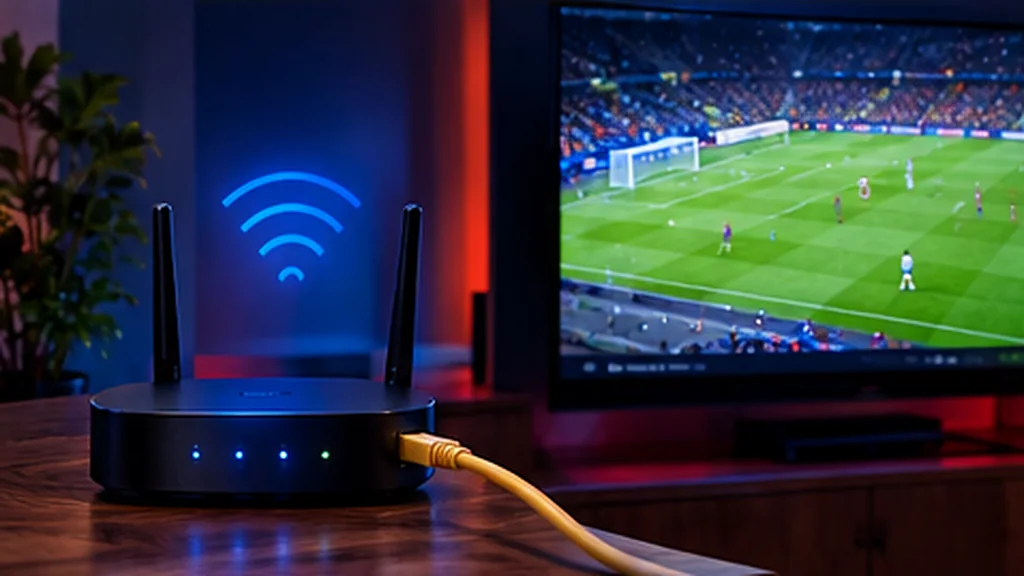
There’s nothing worse than the picture freezing just as the ball hits the net. The good news: most IPTV buffering is caused by something in your own home – usually Wi-Fi – and it can be fixed in minutes. Work through these twelve fixes in order and you’ll solve the vast majority of problems.
First, Find the Cause
Ask yourself three quick questions:
- Is it every channel, or just one? If it’s one channel, that stream may be busy – try another and let us know.
- Is it every device? If your phone plays fine but the TV buffers, the problem is the TV’s connection or the device itself.
- Is it only at certain times? Buffering only on busy evenings usually points to a congested home network or broadband line.
The 12 Fixes
1. Restart everything
Switch off the router, the TV and the streaming device for 30 seconds, then turn the router back on first. It clears memory and refreshes your connection.
2. Use an Ethernet cable
A wired connection is the single most effective fix. Most Smart TVs, Android boxes and MAG boxes have an Ethernet port, and you can buy a cheap Ethernet adapter for a Firestick.
3. Switch to 5 GHz Wi-Fi
If a cable isn’t practical, connect to your router’s 5 GHz network. It’s faster and less crowded than 2.4 GHz, though its range is shorter.
4. Move the router (or the device)
Thick walls, mirrors, fish tanks and even microwaves weaken Wi-Fi. Keep the router high, central and out of cupboards.
5. Add a mesh system or powerline adapters
In bigger British homes – especially older houses with solid walls – a mesh Wi-Fi system or a pair of powerline adapters can bring a strong connection to the TV room.
6. Test your speed at the TV
Run a speed test on the device itself, not next to the router. As a guide, you want 10–15 Mbps for HD and 25 Mbps+ for 4K. Our broadband speed guide explains how much you really need.
7. Pause other heavy downloads
Game updates, cloud backups and other people streaming 4K all compete for bandwidth. Schedule big downloads overnight.
8. Clear the app cache
On Firestick and Android: Settings → Applications → your IPTV app → Clear cache. Do this every few weeks.
9. Change the player settings
Most IPTV apps let you choose a different video player or decoder (hardware vs software) and increase the buffer size. Try each option – the right one depends on your device.
10. Pick a lower quality stream
If your connection is borderline, an HD version of a channel will play more smoothly than 4K.
11. Update your device and app
Updates often fix playback bugs. Keep both your IPTV player and your TV or stick’s software up to date.
12. Upgrade an old device
First-generation Firesticks and cheap Android boxes can struggle with modern apps. A newer Fire TV Stick 4K or a good Android TV device makes a big difference.
Try UK Pro TV free for 48 hours
32,000+ live channels and 200,000+ films and series on your own devices. No card, no contract, no auto-renewal.
Still Buffering?
Message our support team with your device, your app and a quick speed-test screenshot from the TV, and we’ll help you track it down. Our servers run at 99.9% uptime, so if there’s ever a problem on our side we’ll tell you straight away.
Setting up a new device? Follow our IPTV setup guide, or test your home network first with a free 48-hour trial.
Leave a Reply