
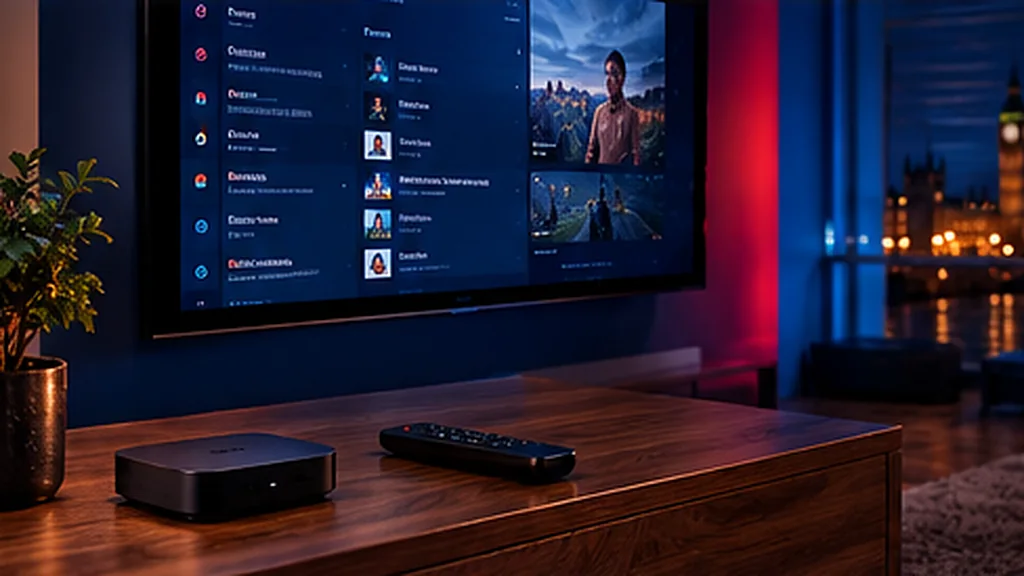
Android TV is one of the best platforms for IPTV. Whether you have a TV with Google TV built in (many Sony, TCL and Hisense models), an Nvidia Shield, a Chromecast with Google TV or a budget Android box, you get access to the widest choice of IPTV players – and setup takes just a few minutes.
Android TV, Google TV or Android Box – What’s the Difference?
- Android TV / Google TV is Google’s official TV software, with the Google Play Store built in.
- Android boxes are small media players that run Android. Some have the full Play Store; others run phone-style Android with a different store.
The setup is almost identical on all of them.
Step 1: Install an IPTV Player From Google Play
- On the home screen, open the Google Play Store (or search with the microphone button).
- Search for the IPTV player we recommended.
- Select Install and wait for it to finish.
Popular choices include TiviMate, IPTV Smarters Pro and XCIPTV. TiviMate in particular gives Android TV a polished, Sky-style TV guide.
Step 2: Can’t Find the App? Sideload It
If your box doesn’t have the app in its store, install Downloader from the Play Store, then allow it to install apps: Settings → Apps → Security & restrictions → Unknown sources (or Settings → Device Preferences → Security). Open Downloader, enter the link from your welcome message and install the player.
Step 3: Log In
Open the player and choose:
- Xtream Codes – username, password and server URL, or
- M3U playlist – paste your playlist link.
Save, then wait while your channels, EPG and on-demand library load. TiviMate may ask you to choose which channel groups to show – pick the ones you want and hide the rest for a tidier guide.
Try UK Pro TV free for 48 hours
32,000+ live channels and 200,000+ films and series on your own devices. No card, no contract, no auto-renewal.
Performance Tips for Android TV
- Use Ethernet if your TV or box has a port – it’s the single biggest upgrade for live sport.
- Choose the right player engine. In most players’ settings you can switch between hardware and software decoding; try the other option if a channel stutters.
- Clear cache regularly: Settings → Apps → your player → Storage → Clear cache.
- Turn off auto-updates for heavy apps you don’t use, so they don’t slow the box down.
- Restart the box once a week – cheaper boxes benefit most.
Getting a Proper TV Guide
The EPG usually loads automatically with Xtream Codes. If it’s missing, open the player’s settings, find EPG or TV guide and select Update. Make sure the time zone is set to London (GMT/BST) so programmes line up correctly.
Common Android Problems and Fixes
The app crashes on launch
Clear the app’s storage (not just cache), reopen it and log in again. Make sure your box has at least 1 GB of free storage.
Video plays but there’s no sound
Switch the audio output in the player settings (for example from passthrough to PCM), especially if you use a soundbar.
Buffering at peak times
Move to 5 GHz Wi-Fi or Ethernet, and see our 12 IPTV buffering fixes.
Ready When You Are
Test everything with a free 48-hour UK Pro TV trial – no card required. Using an Android phone or tablet too? The same app and login work there, and our setup guide covers every other device.
Leave a Reply