
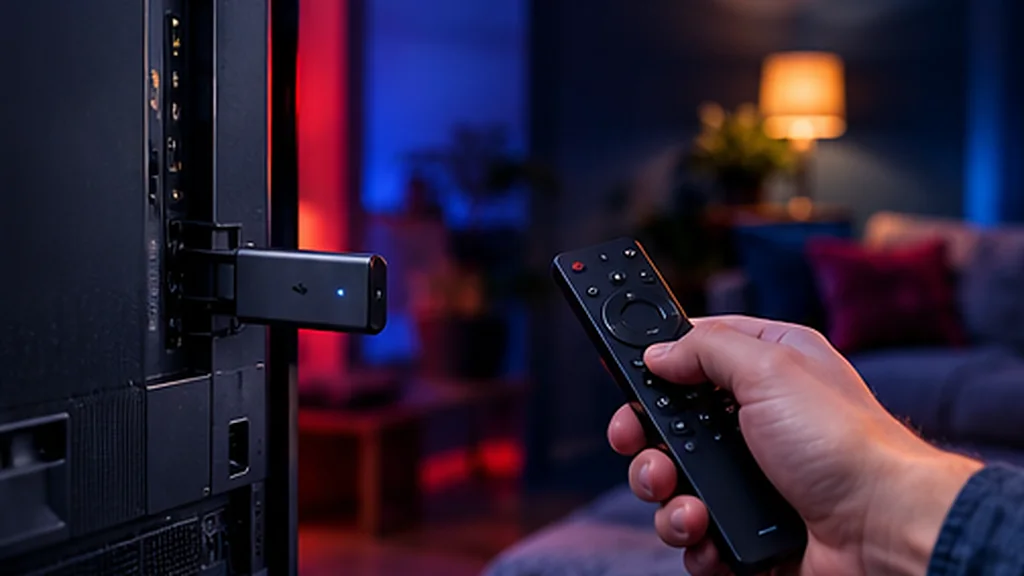
The Amazon Fire TV Stick is the most popular way to watch IPTV in the UK – it’s cheap, it plugs straight into your TV’s HDMI port and it runs every major IPTV player smoothly. This guide shows you exactly how to set up IPTV on a Firestick, step by step. It takes around ten minutes and you don’t need any technical knowledge.
What You Need Before You Start
- An Amazon Fire TV Stick, Fire TV Stick 4K or Fire TV Cube, connected to your TV and the internet
- Broadband of roughly 10–15 Mbps for HD or 25 Mbps+ for 4K
- Your IPTV login details – username, password and server URL, or a playlist link
- About ten minutes
No subscription yet? You can try UK Pro TV free for 48 hours and follow this guide with your trial login.
Step 1: Update Your Firestick
An up-to-date Firestick runs apps faster and more reliably. Go to Settings → My Fire TV → About and select Check for Updates. Install anything available and let the stick restart.
Step 2: Look for Your IPTV App in the Amazon Appstore
From the home screen, go to Find → Search and type the name of the IPTV player we recommended. If it appears, select Get or Download and skip straight to Step 6. If it isn’t available in the UK Appstore, carry on with Steps 3 to 5.
Step 3: Turn On Developer Options
On newer Firesticks the Developer Options menu is hidden. To reveal it:
- Go to Settings → My Fire TV → About.
- Highlight your device name (for example “Fire TV Stick 4K”) and press the select button seven times.
- A message confirms you’re now a developer. Press back – Developer Options now appears under My Fire TV.
Step 4: Install the Downloader App
Search for Downloader in the Appstore and install it. It’s a free, widely used app that lets you install apps from a web address.
Step 5: Allow Downloader to Install Apps
Go to Settings → My Fire TV → Developer Options → Install unknown apps and switch Downloader to ON. (On some older models this setting is called Apps from Unknown Sources.)
Step 6: Install Your IPTV Player
Open Downloader, type the link or code from your welcome message into the box and select Go. When the download finishes, choose Install, then Done. You can delete the installation file afterwards to free up space.
Step 7: Log In
Open your IPTV app. Most apps give you two options:
- Xtream Codes API – enter your username, password and server URL exactly as we sent them.
- M3U playlist – paste the full playlist link.
Give your profile a name, save it and wait for the channels, TV guide and on-demand library to load. The first load can take a minute.
Step 8: Make It Easy to Find
Hold the Home button, choose Apps, highlight your IPTV app, press the menu button (three lines) and select Move to front. It now sits on your home screen.
Try UK Pro TV free for 48 hours
32,000+ live channels and 200,000+ films and series on your own devices. No card, no contract, no auto-renewal.
Firestick IPTV Tips for a Smoother Picture
- Use 5 GHz Wi-Fi or an Ethernet adapter – the Firestick’s Wi-Fi is the most common cause of buffering.
- Clear the app cache every few weeks: Settings → Applications → Manage Installed Applications → your app → Clear cache.
- Restart the Firestick now and then: Settings → My Fire TV → Restart.
- Power it from the plug, not the TV’s USB port – underpowered sticks stutter.
- Close unused apps to free up memory on older models.
Common Firestick Problems and Fixes
The app won’t install
Check that Install unknown apps is switched on for Downloader and that you typed the link exactly. If storage is full, uninstall apps you don’t use.
“Invalid login” or no channels
Usernames and passwords are case-sensitive. Re-enter them carefully, check the server URL includes http:// and the port number, then try again.
Channels buffer or freeze
Move the router closer, switch to 5 GHz Wi-Fi or use Ethernet. Our 12 fixes for IPTV buffering cover everything else.
Need a Hand?
Message our support team on WhatsApp or by email with your Firestick model and what you can see on screen – we’ll walk you through it. For other devices, see our full IPTV setup guide.
Leave a Reply