
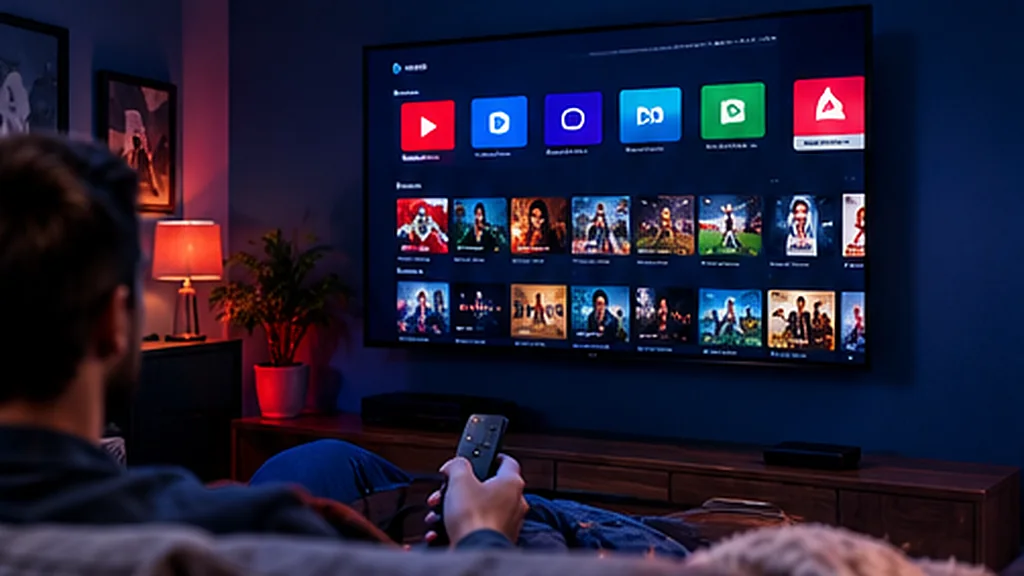
If you’ve got a Samsung or LG Smart TV, you may not need a Firestick or a set-top box at all. Both brands let you install an IPTV player straight onto the TV, so you can watch live UK channels and on-demand box sets with just the TV remote. Here’s how to set it up.
Which Smart TVs Work With IPTV?
- Samsung Smart TVs running Tizen (most models from 2017 onwards)
- LG Smart TVs running webOS (most models from 2016 onwards)
Older or budget models may have a limited app store. If yours doesn’t offer a suitable player, a Firestick or an Android TV box is a cheap and reliable alternative.
How Smart TV IPTV Apps Work
Samsung and LG don’t let you install apps from outside their own stores, so you use a player that’s available in the Samsung Apps store or the LG Content Store. Many of these players work slightly differently from phone apps:
- The app shows a MAC address or device key on screen.
- Your playlist is linked to that device – either you enter your login in the app, or we add it for you.
- Some Smart TV players charge a small one-off activation fee to the app developer after a free trial period. This is separate from your IPTV subscription.
We’ll tell you which player suits your TV model when we send your login details.
Setting Up IPTV on a Samsung Smart TV
- Press the Home button and open Apps.
- Select the search icon and type the name of the recommended IPTV player.
- Choose the app and select Install, then Open.
- Note the MAC address / device key shown on screen. Send it to us on WhatsApp if your welcome message asks for it.
- Enter your login details in the app, or wait for us to confirm your playlist has been added.
- Restart the app – your channels and TV guide will load.
Setting Up IPTV on an LG Smart TV
- Press the Home button and open the LG Content Store (sometimes just called Apps).
- Search for the recommended IPTV player and select Install.
- Launch the app and note the MAC address or device key.
- Add your login details, or send us the device key so we can link your playlist.
- Close and reopen the app to load your channels.
Try UK Pro TV free for 48 hours
32,000+ live channels and 200,000+ films and series on your own devices. No card, no contract, no auto-renewal.
Getting the Best Picture on a Smart TV
- Use a wired connection. Most Smart TVs have an Ethernet port – a cable gives the steadiest stream.
- Check the Wi-Fi band. If you can’t use a cable, connect to your router’s 5 GHz network.
- Turn off motion smoothing (Auto Motion Plus on Samsung, TruMotion on LG) if live sport looks “soapy” or stutters.
- Keep the TV updated. Go to Settings → Support → Software Update (Samsung) or Settings → General → About this TV (LG).
Fixing Common Smart TV Problems
The app isn’t in my TV’s store
App availability varies by model and region. Try another recommended player, or use a Firestick plugged into the TV.
The app says “playlist not found”
Check the MAC address you sent us is correct – a single wrong character stops it working. Restart the app after we confirm the playlist is added.
The picture keeps freezing
Smart TV Wi-Fi chips are often weaker than a Firestick’s. Try a cable, move the router closer or read our buffering fixes.
Try It on Your TV First
The easiest way to check how UK Pro TV runs on your Samsung or LG is a free 48-hour trial – no card needed. Stuck at any point? Message us and we’ll set it up with you. You’ll find guides for every other device in our setup guide.
Leave a Reply